> ## Documentation Index
> Fetch the complete documentation index at: https://docs.octavehq.com/llms.txt
> Use this file to discover all available pages before exploring further.
# Octave + Clay
> Learn how to use Octave's API with Clay to enhance your GTM workflows
## Quick Start Guide
1. [Create an Octave account](https://app.octavehq.com)
2. Follow the onboarding steps to add your first product to the Library
3. (Optional) Create a [Motion](/concepts/motions) to generate more precise messaging
4. Add the [Octave Clay Template](https://app.clay.com/shared-table/share_kB3iro5tYc5z) to your workspace
### Connecting the API
1. Get your API key:
* Go to the [Developers tab](https://app.octavehq.com/developers)
* Generate an API key for your workspace
2. Set up the Clay template:
* Copy the [Octave Clay Template](https://app.clay.com/shared-table/share_kB3iro5tYc5z) to your workspace
* Find the HTTP API columns labeled:
* Octave Enrich Person
* Octave Enrich Company
* Octave Sequence
* Personalize Template
* Enter your API key in each HTTP column where it says `INSERT_OCTAVE_KEY_HERE`
* Save your changes
3. Build an Agent
* Build your first Agent [here](https://app.octavehq.com/agents) in Octave. Test and tinker with your agent in Octave and when you are ready save it and grab the Agent ID.
* Set the `agentOId` value in your Clay column and you are good to go!
4. Test the integration:
* Insert a person profile into the table
* Run some of the columns/cells
* Note: First API call may take longer than subsequent calls
## Clay Integration Tips
### Save as Templates
Save Octave HTTP API columns as templates for easy reuse across multiple Clay tables.
### Export from Octave to Clay
1. In Clay:
* Choose "import" from actions
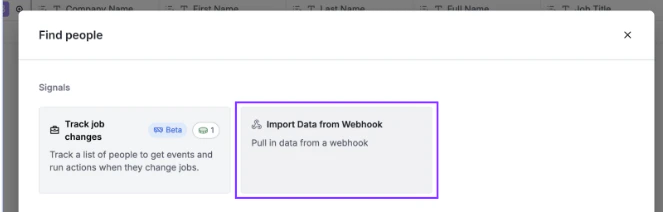 1. Select "import data from webhook"
2. Copy the webhook URL
1. Select "import data from webhook"
2. Copy the webhook URL
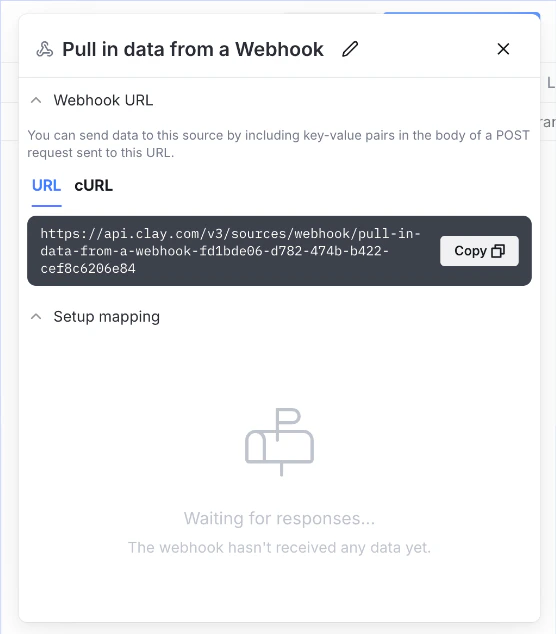 1. In Octave:
* Go to Search or any List
* Click export
1. In Octave:
* Go to Search or any List
* Click export
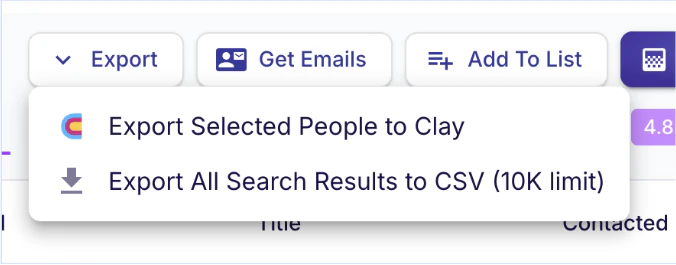 1. Select "export to Clay"
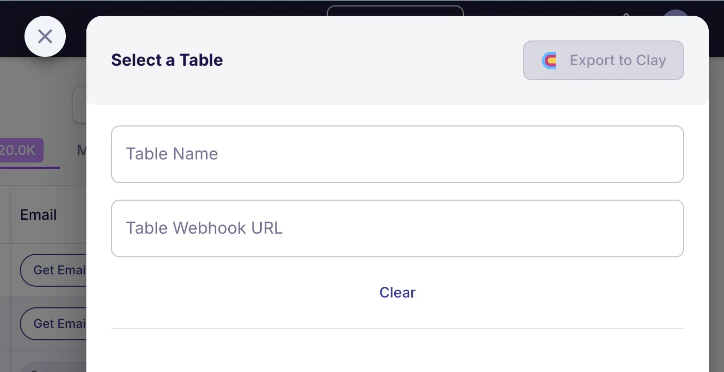 1. Input the webhook URL
2. Save webhook for future use
### Individual Endpoint Templates
* [Person Enrich example table](https://app.clay.com/shared-table/share_6yMPtn2T6oFk)
* [Company Enrich example table](https://app.clay.com/shared-table/share_y4GikhS8ZCPB)
* [Sequence example table](https://app.clay.com/shared-table/share_f4nQVuV4Kaf7)
* [Personalize Template table](https://app.clay.com/shared-table/share_RSWf3jB9iCT4)
* [Generate Content](https://app.clay.com/shared-table/share_vRh8XZqHJZsr)
1. Input the webhook URL
2. Save webhook for future use
### Individual Endpoint Templates
* [Person Enrich example table](https://app.clay.com/shared-table/share_6yMPtn2T6oFk)
* [Company Enrich example table](https://app.clay.com/shared-table/share_y4GikhS8ZCPB)
* [Sequence example table](https://app.clay.com/shared-table/share_f4nQVuV4Kaf7)
* [Personalize Template table](https://app.clay.com/shared-table/share_RSWf3jB9iCT4)
* [Generate Content](https://app.clay.com/shared-table/share_vRh8XZqHJZsr)